

Table of Contents
I’ve explained in my previous post on the concept of Terraform Drift how important the Terraform State file is. As a quick recap, Terraform state is the source of truth that maps your configuration to real infrastructure. It tracks resource IDs, dependencies, and current attributes so Terraform can safely calculate change. Losing it breaks your ability to manage infrastructure; exposing it risks leaking secrets. That’s why state must be treated as a critical security asset.
In this post I want to expand on the tools and techniques we can use to protect and secure our state for our Azure IaC deployments. It’s aimed at teams running Terraform in Azure using Azure DevOps or similar CI/CD platforms, where state security, audit-ability, and compliance matter.
State storage design principles
Whilst storing state locally is a valid option, it doesn’t give us any flexibility when working in a team environment and there are no security or locking features. For these reasons, we always want to store our state in a remote backend location. As we work primarily within Azure it makes sense to store our state file in an Azure Blob Storage Account.
There are some key design considerations we should focus on when using a remote backend:
✅ DO store state in a dedicated Azure Storage Account
✅ DO keep state separated from the infrastructure deployment, the storage account should be in a platform subscription
❌ DON’T allow access to the storage account through Access Keys
✅ DO enforce strict RBAC controls and only allow your deployment service principals access (managed ID, service principal, OIDC)
✅ DO restrict public access to the storage account where possible
✅ DO enable audit logging on the storage account
Hardening access to the backend
Enable encryption at rest on your storage account (enabled by default in Azure), and use Entra ID authentication rather than storage account keys whenever possible. Restrict network access using storage account firewalls and private endpoints to limit who can reach your state files and keep your traffic on the Azure backbone. Use Azure RBAC to grant least-privilege access, typically only your CI/CD pipelines and infrastructure team members need access.
Preventing accidental exposure
It’s easy to forget to create a git ignore file and accidentally push a Terraform state file to your Azure DevOps remote repository. You can safeguard against this by adding a file path filter within the Azure DevOps Repo Project settings area, simply add a file path protection that prevents *.tfstate

Enable state locking and versioning
Terraform automatically uses blob leases for state locking when using Azure Storage as a backend, which prevents concurrent modifications that could corrupt your state. Enable blob versioning or soft delete on your storage account so you can recover from accidental deletions or corrupted state files. Keep multiple versions retained for at least 30-90 days to provide a safety net.
Organise state files strategically
Use separate storage accounts or containers for different environments (development, staging, production) to reduce blast radius and simplify access controls. Consider using separate state files for different logical components of your infrastructure rather than one monolithic state file, this reduces locking contention, speeds up operations, and limits the impact of state corruption. Use clear, consistent naming conventions for your containers and blob names.
Implement backup and disaster recovery. Beyond versioning, consider geo-redundant storage (GRS or GZRS) for production state files to protect against regional outages. Regularly test your ability to restore state from backups. Document your state storage configuration and recovery procedures so team members can respond to incidents.
Enable auditing on the storage account
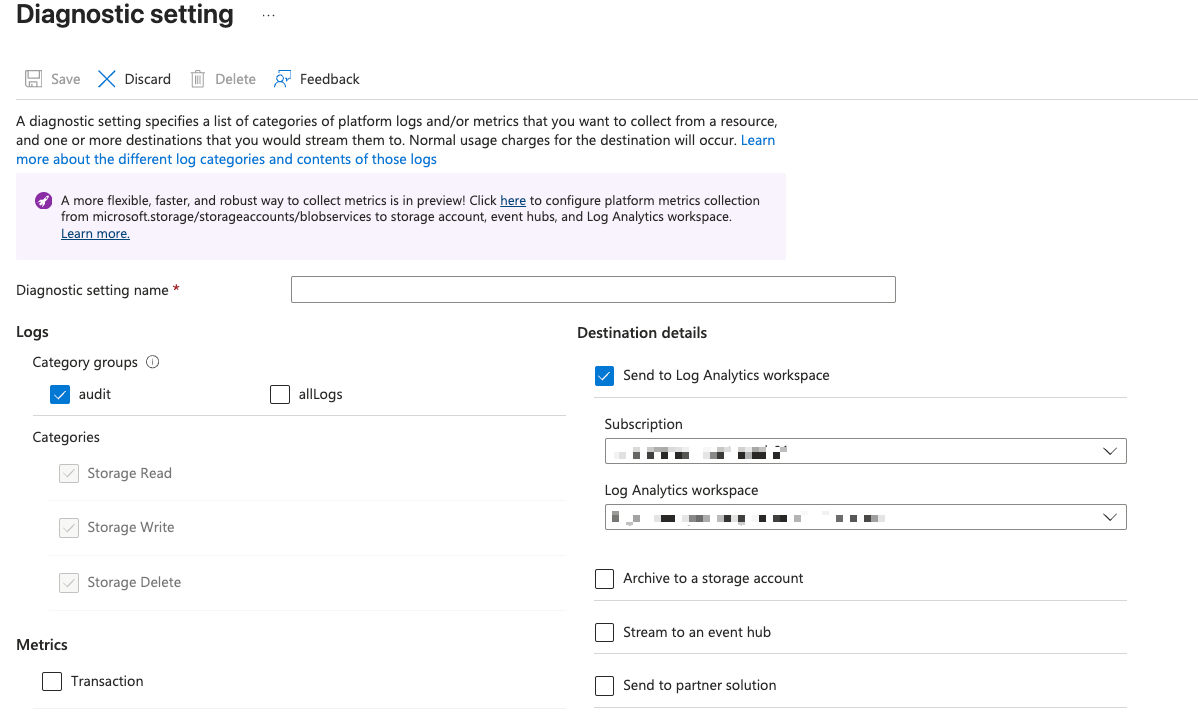
Having auditing enabled on the storage account is a useful tool when we need to either proactively or reactively monitor who, what and when the storage account and state files were accessed. This helps during suspected security incidents, or when you need to validate who is accessing state.
Turn on the audit logs by adding a diagnostic setting to the storage account, ideally send the logs to Log Analytics workspace as this provides the quickest visibility through the use of KQL queries. Remember there is a cost for data ingestion and retention in the workspace, so only turn on what you need.
Deny public access
Preventing public access to the storage account is a key step in protecting your state files. It does however add complexity as we need our pipeline runners to have access to the storage account on a private endpoint. There are a few ways we can achieve this including Managed DevOps Pools, self-hosted agents, or using the ‘Allow trusted Microsoft services’ bypass with managed identities. All of these approaches are beyond the scope of this blog post, but I’ll cover this in more detail in an upcoming post on securing Terraform backends with private endpoints.
Force Entra ID – Disable Access Keys
As mentioned it is best practice to not allow access to your backend storage account with Access Keys. Access Keys are uncontrolled and don’t give the level of audit we may require. Fortunately preventing access keys and enforcing Entra ID is simple.
Within the storage account configuration, switch the allow storage keys to disabled.

Then, grant the RBAC access to the storage account for the service principal or managed identity running Terraform, to have access to the state storage account using Storage Blob Data Contributor role.
Make sure in your backend configuration block you tell Terraform to use Entra ID to access the storage account, otherwise you will receive an error saying:
Error: Failed to get existing workspaces: retrieving container client: retrieving key for Storage Account "sttfxxxx": listing Keys for Storage Account (Subscription: "xxxx-xxxx-xxxx-xxxx-xxxx"
Your backend block should look something like this:
terraform {
  backend "azurerm" {
    resource_group_name  = "rg-tfstate-prod"
    storage_account_name = "sttfstateprod"
    container_name       = "tfstate"
    key                  = "networking-prod.tfstate"

    use_azuread_auth = true
  }
}
Secrets and state: what Terraform really stores
As we’ve mentioned Terraform stores details about the resources it manages within state, and unfortunately this means if we use Terraform to create or process secrets these will likely get stored in state too.
A common misconception is that using the sensitive label in a variable protects the secret within state – It doesn’t! The sensitive label in a variable, or output simply means the output will be redacted within the console, not within state. If someone has access to the state file, they also have access to these sensitive values.
Since Terraform v1.10 we have the option to define the ephemeral resource type. An ephemeral resource or block does not get stored in state and is only available at runtime. This does address some of the concerns of having Terraform generate secrets, but it comes with some caveats too. For example, Terraform won’t know anything about the state of the ephemeral resource between runs, so it will likely want to re-create the resource each time. The other issue is that it is a fairly new resource type, and not all providers or their resources will support it yet. You can see which resources and providers currently adopt the ephemeral resource type here: https://support.hashicorp.com/hc/en-us/articles/36370466952979-List-of-Ephemeral-Resources-released-by-Top-Terraform-Providers
Modern approaches: ephemeral resources
We can use the ephemeral resource block with our Azure IaC deployments to prevent passwords being stored in plain text within the Terraform state.
⚠️ Ephemeral resources require Terraform v1.10+ and provider support. Always validate compatibility before adopting this pattern in production.
First create a random password using the random password resource type, but rather than specifying resource as the type, make it ephemeral.
ephemeral "random_password" "random_password" {
  length           = 16
  special          = true
  override_special = "!@#$%&*()-_=+[]{}<>:?"
}
The best place for a password or secret is within Azure Key Vault. So let’s store the random password we generated as a secret within Key Vault.
resource "azurerm_key_vault_secret" "kv_random_password" {
  name             = "random-password"
  value_wo         = ephemeral.random_password.random_password.result
  value_wo_version = 1
  key_vault_id     = azurerm_key_vault.keyvault.id
}
Notice that instead of specifying the value, we have to use the value_wo alongside the value_wo_version – these are new write-only attributes which must be used when we are referencing an ephemeral resource type (in our case, the random password). The version tells Terraform we want to change the resource, we would do this if we wanted to change the password.
This is one of the most effective ways to prevent secrets ever entering state — and it’s still largely under-used.
We now have a password stored in Key Vault that doesn’t show up with any sensitive values within the state file. We can then use this password within our resource such as Microsoft SQL Server.
resource "azurerm_mssql_server" "sql_server" {
  name                                    = "sqlserver01"
  resource_group_name                     = azurerm_resource_group.gen.name
  location                                = var.location
  version                                 = "12.0"
  administrator_login                     = "sqladmin"
  administrator_login_password_wo         = ephemeral.random_password.random_password.result
  administrator_login_password_wo_version = 1

  tags = local.solution_tags
}
Note again the use of the password_wo and password_wo_version the same as in the Key Vault secret. If you forgot to use these parameters and use the default password one you will get an error stating it’s the incorrect use of ephemeral resources.
│ Ephemeral values are not valid for "admin_password", because it is not a
│ write-only attribute and must be persisted to state.
Not all resource types support the write-only attributes, for example virtual machines have not yet got the functionality. In cases like this, consider other options to pre-create secrets, either using pipeline tasks or external provider resources. These are not as elegant as the ephemeral resource but they do provide an alternative option.
Recovery and remediation
If you have already run your Terraform plan/apply tasks without using secret obfuscation options, you may find yourself with a state file that contains sensitive information that you want to clean up. The cleanest and safest way to do this is through secret cycling. Updating your Terraform code to use the newer ephemeral blocks and resource types will force a new secret to be generated and applied to the resource, one that isn’t stored in state.
Another approach involves state manipulation – but I generally advise against this as the state is a complex interlinked file and making a change to it could adversely affect your deployment and cause you more problems than you aim to solve. If you must manipulate state directly, always create a backup first using Terraform state pull > backup.tfstate and test thoroughly in a non-production environment.
Summary
Terraform State is a complex file containing details about all the resources it manages. It must be protected like you protect any critical resource. Remember the key principles we highlighted in the opening section.
In an upcoming post I will cover how we can restrict public access to our storage accounts whilst still allowing Azure DevOps the ability to use the storage for state.
Treat Terraform state like production credentials — because in many cases, that’s exactly what it contains.
Thank you for the interesting article and for sharing the way to prevent secrets entering the Terraform state.
Thanks for following along and the feedback!