
Table of Contents
In the first part of this series, Building an Azure Service Catalog: Self-Service Cloud Infrastructure for Your Teams , I introduced the idea of building a self‑service portal on Azure, driven by a service catalogue and strong platform guardrails. In this post, I want to zoom in on the backend mechanics — specifically how Azure DevOps and Terraform can be used to power self‑service without throwing away years of existing investment.
Over the years, I’ve built up a solid library of Terraform modules that we use to deploy infrastructure consistently. We’re also heavily invested in Azure DevOps today, although I’m deliberately keeping an open mind about whether Azure DevOps or GitHub ends up being the long‑term home for this pattern. For now, this part of the series focuses on Azure DevOps + Terraform, but the principles should translate cleanly to other CI/CD platforms.
It All Starts With the Pipeline
At the heart of any self‑service platform is a pipeline. Regardless of how slick the frontend eventually becomes, something has to:
- Accept parameters (environment, region, service type, etc.)
- Enforce approvals and governance
- Trigger infrastructure deployment in a controlled way
At this stage, I’m intentionally keeping things simple. The goal is to validate the flow, identify constraints, and understand where friction appears — not to design the perfect portal on day one.
For now, I’m ignoring the frontend entirely and focusing on backend building blocks:
- Azure DevOps pipelines
- Existing Terraform modules
- A trigger mechanism inside DevOps
The frontend (whether that’s a custom UI, Power Apps, Backstage, or something else) can come later. As long as the backend contract is solid, the frontend becomes an implementation detail.
Using Work Items as the Control Plane
One idea I wanted to explore was whether Azure DevOps work items could act as both:
- An approval mechanism
- A structured way to pass parameters into a pipeline
There’s no native way to directly trigger a pipeline from a work item, but with a combination of service hooks and an incoming webhook service connection, it turns out to be very workable.
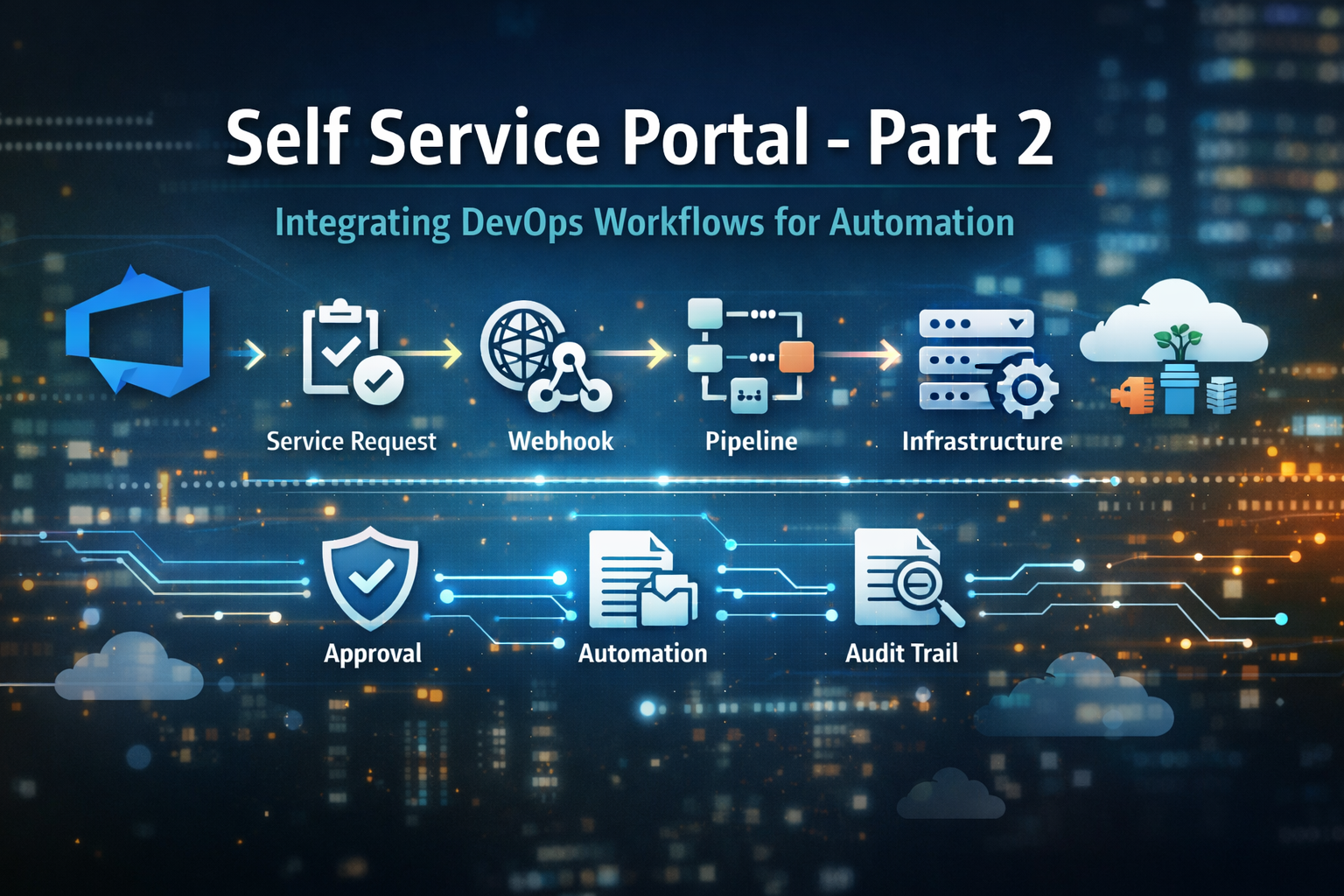
The high‑level flow looks like this:
- A work item represents a service request
- The work item captures required inputs (environment, region, service, etc.)
- Updating the work item state triggers a service hook
- The service hook calls an incoming webhook
- The webhook triggers a pipeline, passing the work item payload
Security Caveat (For Now)
One important call‑out: an incoming webhook service connection can be triggered by anyone who has the URL. Authentication can be added, but that typically means introducing an intermediary (for example, an Azure Function) to validate requests before forwarding them.
I’m deliberately parking that problem for now. The aim here is to validate the pattern end‑to‑end. Hardening and production‑grade security will come later in the series.
Custom Work Item: Service Request
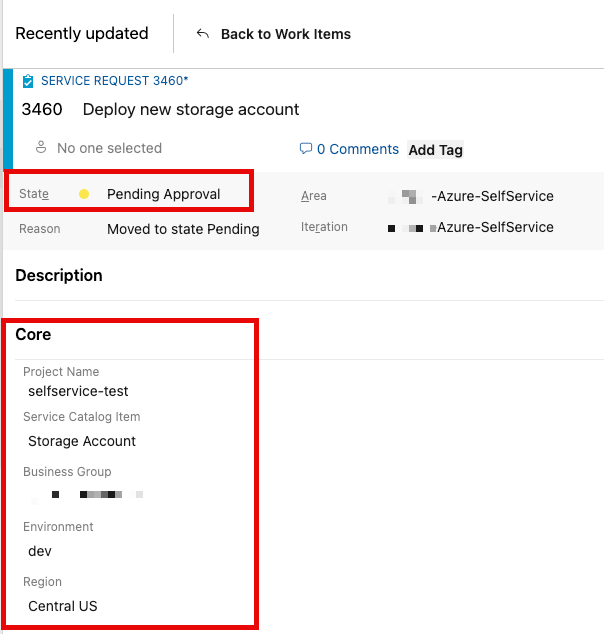
To support this flow, I created a custom work item type called Service Request.
Steps at a high level:
- Create a new process in Azure DevOps Organisation Settings
- Inherit from the Scrum process
- Create a new work item type: Service Request
- Add required fields, for example:
- Project name
- Service catalogue item
- Environment (dev / uat / prod)
- Region
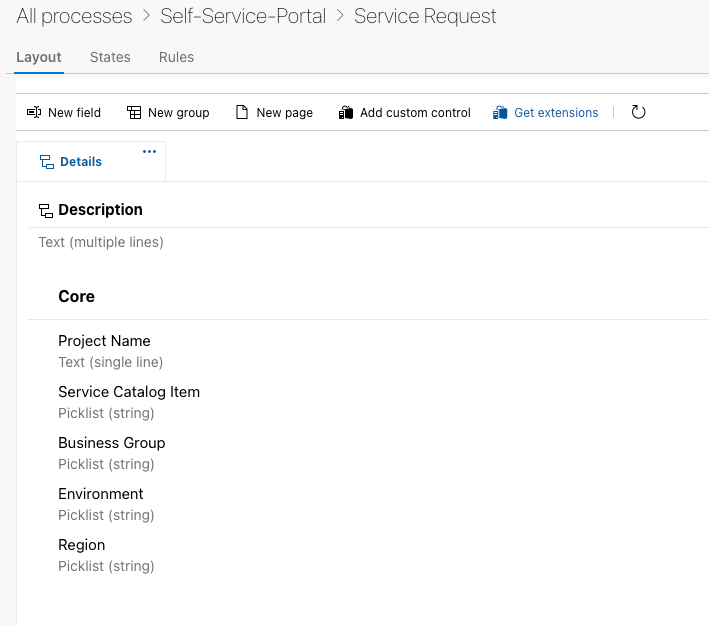
This work item becomes the system of record for the request and the approval decision. With the added benefit of DevOps auditing.
Incoming WebHook Service Connection
Next, we need a way for an external event (the service hook) to trigger a pipeline.
In Azure DevOps, create a Service Connection of type Incoming WebHook:
- Give it a clear name (avoid spaces or special characters — dashes caused issues for me)
- No secret or headers required at this stage
Once created, the service connection exposes a URL in the following format:
https://dev.azure.com/{org}/_apis/public/distributedtask/webhooks/{webhook-name}?api-version=6.0-preview
This URL is what the service hook will call.

Service Hook: Bridging Work Items and Pipelines
Inside the project settings, create a Service Hook with the following configuration:
- Trigger: Work Item Updated
- Work Item Type: Service Request
- Field: State
- Action: Post via HTTP
- URL: Incoming webhook URL
- Payload: All details
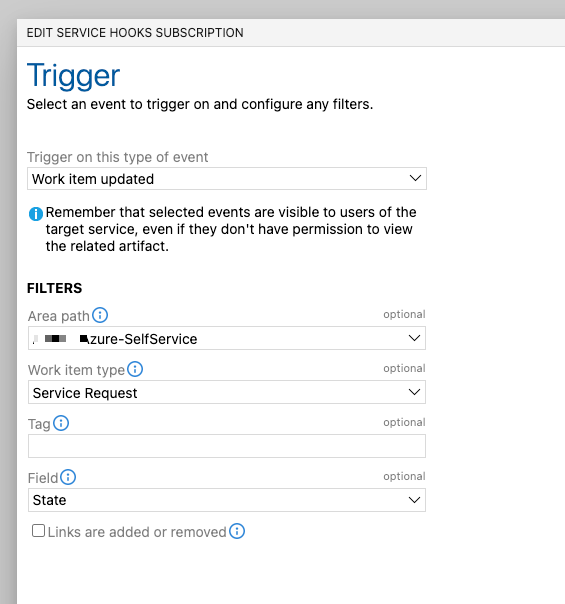
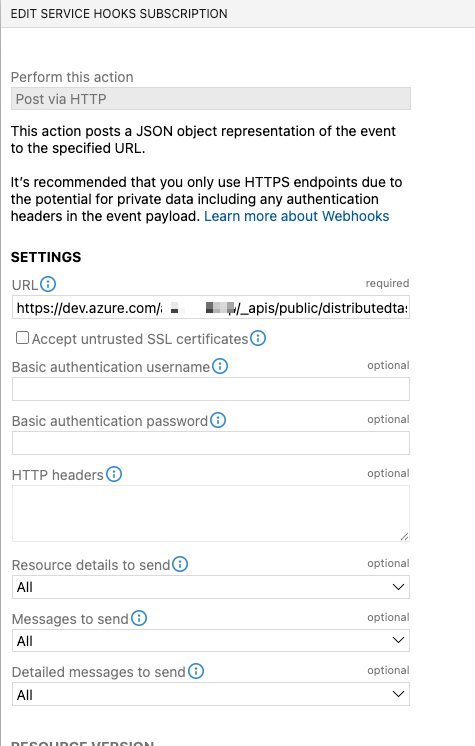
This ensures that when the state of a Service Request changes, the full work item payload is posted into the pipeline.
Using the test function is a quick way to validate that the service connection is wired up correctly.
Wiring the Pipeline to the Webhook
In the pipeline YAML, the webhook is declared as a resource:
trigger: none
resources:
  webhooks:
    - webhook: SelfServiceTrigger
      connection: SelfServiceConnection
At this point, the pipeline can be triggered by webhook events, but we still need control over when it actually runs.
Basic Filtering
Azure DevOps supports simple filters on webhook payloads:
filters:
  - path: eventType
	  value: workitem.updated
This isn’t a security boundary, but it does prevent accidental or malformed calls from triggering a run.
One limitation worth noting: filters can’t easily reference nested JSON fields, which becomes relevant later.
Extracting Work Item Data
When the webhook fires, the entire work item payload is available to the pipeline. The first step is to capture it:
- bash: |
	echo '$\{\{ convertToJson(parameters.SelfServiceTrigger) }}' > payload.json
  displayName: "Save JSON payload"
From here, we can use jq to extract whatever we need.
Enforcing Approval via Work Item State
Because the State field is nested JSON, we can’t filter on it directly. Instead, we enforce approval inside the pipeline:
state=$(jq -r '.resource.revision.fields\["System.State"]' payload.json)
If the state isn’t Approved, the pipeline sets an output variable and exits early.
This gives us a clean, auditable approval gate that lives entirely in DevOps.
Extracting Environment and Region
Other fields (like environment and region) are extracted and normalised, then stored as pipeline variables:
echo "##vso\[task.setvariable variable=TF\_ENVIRONMENT;isOutput=true]$environment"
echo "##vso\[task.setvariable variable=TF\_LOCATION;isOutput=true]$location"
These variables then flow through subsequent stages and into Terraform.
End‑to‑End Flow Recap
At this point, we’ve built a complete backend flow:
- A Service Request work item captures inputs
- Updating the work item state triggers a service hook
- The service hook calls an incoming webhook
- The webhook triggers a pipeline
The pipeline:
- Is triggered when a work item in the Azure DevOps board is Approved
- Validates approval
- Extracts parameters
- Runs Terraform validate, plan, and apply
All without introducing any new tooling.
Why This Matters for Platform Teams
This pattern is interesting because it:
- Reuses existing Azure DevOps features
- Keeps approvals close to the engineering workflow
- Creates a clear audit trail
- Decouples the frontend from the deployment engine
Most importantly, it lets you experiment. You can evolve the service catalogue, approval model, and UX over time without re‑architecting the backend.
Other Workloads
Whilst the original focus of this post was to explore how Azure DevOps services could fit into a self-service backend, this pattern turns out to be far more broadly applicable than infrastructure provisioning alone.
At its core, this approach enables:
A governed, auditable way to turn human intent into automated action
Once you look at it through that lens, a number of additional use cases emerge.
Environment Lifecycle Management
- Create, pause, resume, and destroy environments
- Rotate shared services (bastions, jump hosts, VPNs)
- Scale non-production platforms up or down, either on demand or on a schedule
Why this works
- Work item captures explicit intent and approval
- Pipeline ensures consistent, repeatable execution
- Audit trail clearly shows who requested, who approved, and what changed
Subscription & Landing Zone Actions
- Provision new subscriptions
- Attach subscriptions to management groups
- Apply baseline policy, RBAC, and logging configurations
These are classic platform-team activities: low-value when performed manually, but high-risk if done inconsistently. Automating them through a governed workflow dramatically reduces both effort and error.
Operational Runbooks
This pattern is also a strong fit for operational automation.
- Restart services
- Clear queues
- Reconcile or repair data
- Rebuild or recover failed resources
Why work items beat buttons
- Forces documentation of intent
- Enables pre-flight validation and guardrails
- Prevents ad-hoc or uncontrolled operations during incidents
Infrastructure Changes With Business Context
Some changes are technically simple but operationally significant. For example:
“Increase AKS node count for Black Friday”
Capturing the business reason alongside the change makes approvals easier, audits clearer, and post-incident reviews far more meaningful.
Taken together, these examples show that this is less about a single self-service scenario and more about establishing a reusable control plane for governed automation across the platform.
Summary
This post covers the first concrete building block of the self‑service platform: using Azure DevOps work items and pipelines to drive controlled infrastructure deployment.
It’s not perfect, and it’s not production‑hardened yet — but it proves the concept. I have no doubt we will iterate, adapt and possibly even work through different ideas as we work through the concept of the self service catalog. In the next parts of the series, I’ll look at tightening security, improving validation, and exploring frontend options that sit on top of this foundation.