

Table of Contents
Last month, a developer at a mid-sized financial services firm rotated an Azure service principal’s secret as part of routine maintenance. Within hours, their entire CI/CD pipeline ground to a halt… turns out that same service principal was also authenticating their production monitoring system, customer API gateway, and three critical batch jobs. No one knew. There was no owner listed, no description, and the secret had been valid for 2 years. Whilst a theoretical example, this isn’t unusual. Workload identities often run unattended, hold powerful permissions, and authenticate using long-lived credentials. If they’re misconfigured or forgotten about, they quietly become some of the highest-risk identities in your tenant.
Last week I explained what a workload identity is, and the options available to us in the Azure / Entra world: Service Principals, Managed Identities, and Federated Identities.
This week I want to focus on the part that usually gets overlooked, securing those identities. In this post we’ll look at how to audit what you already have, apply best practices when creating new identities, and finally how to protect them using controls such as Conditional Access.
You can’t secure what you don’t know
Service principal sprawl is easy. With many users able to create application registrations in Entra, and more systems adopting modern authentication, it’s very easy to end up with over-privileged identities using long-lived secrets that outlive their original purpose.
We have a number of ways to review workload identities, the easiest being through the Entra portal Application Registration blade.
An application registration is the definition of the app, while the enterprise application is the service principal – the actual identity created within your tenant that enforces access and permissions.
In short: the app registration is the blueprint, the enterprise app is the service principal that lives and operates in your directory.
When auditing security and permissions, it’s the enterprise application (service principal) that really matters.
I’ve created a script you can use to extract the service principals and the roles and API permissions that are created. The output can be filtered to show high privileged and high risk service principals. You can get a copy of the script from this GitHub Repo. https://github.com/deniscooper/entraid-app-audit/blob/main/Get-ServicePrincipalAudit.ps1
Best practice guidance
Use Managed and Federated Identities
Where possible, always use managed or federated identities. These identities don’t rely on secrets or certificates — the platform issues short-lived tokens automatically.
If the resource is running in Azure, use managed identities. This is by far the simplest and most secure way of granting access to Azure-hosted workloads.
Lock down who can create applications
Protect the Application Administrator and Application Developer role within Entra using PIM. Force a workflow with PIM that requires explicit elevation to these roles with an approval process in place.
Set Owners and Descriptions
There isn’t much metadata that can be set on service principals, but setting and owner and description will make your life much easier when you are working through key rotations and validating if service principals are still in use. The script above will report on any registrations that do not contain an owner or description. Make a point of doing this every time a registration is created.
Enforce short lived passwords
It’s still common to see service principals configured with secrets rather than certificates, many applications simply don’t support certificate-based auth yet.
Where secrets are unavoidable, enforce short-lived secrets using Application Policies in Entra. Microsoft recommends rotating secrets every 90 days.
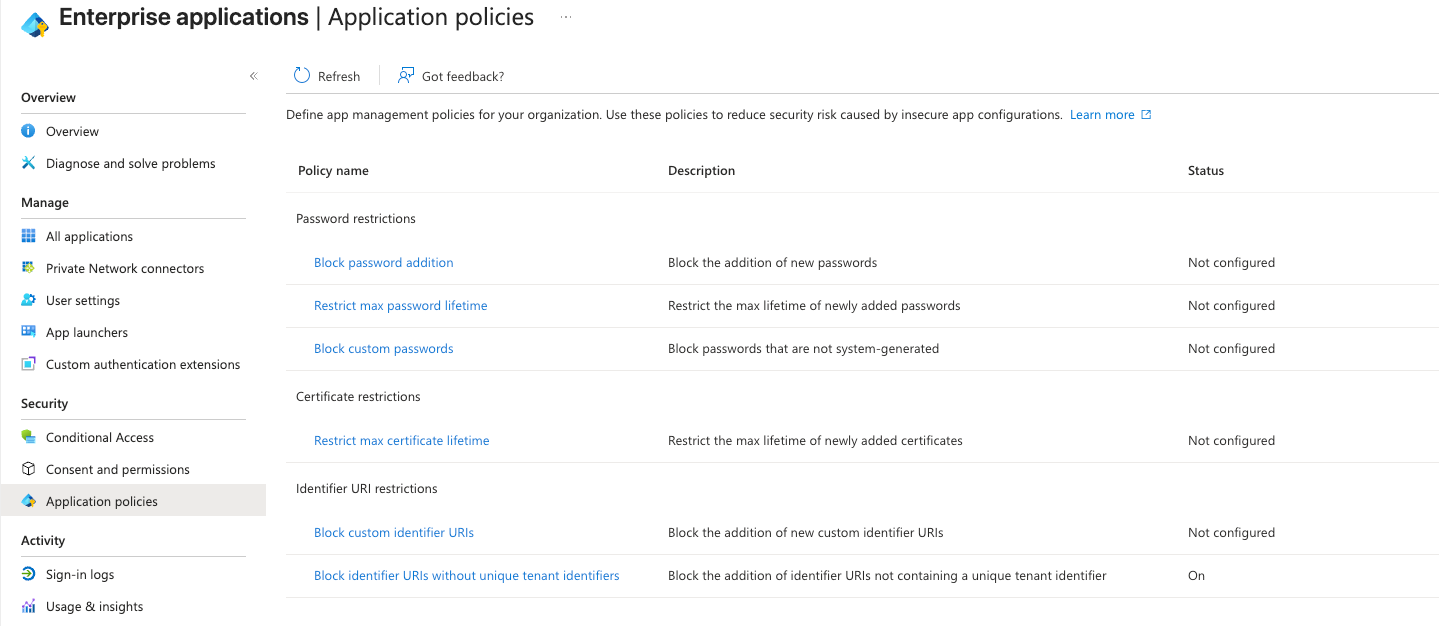
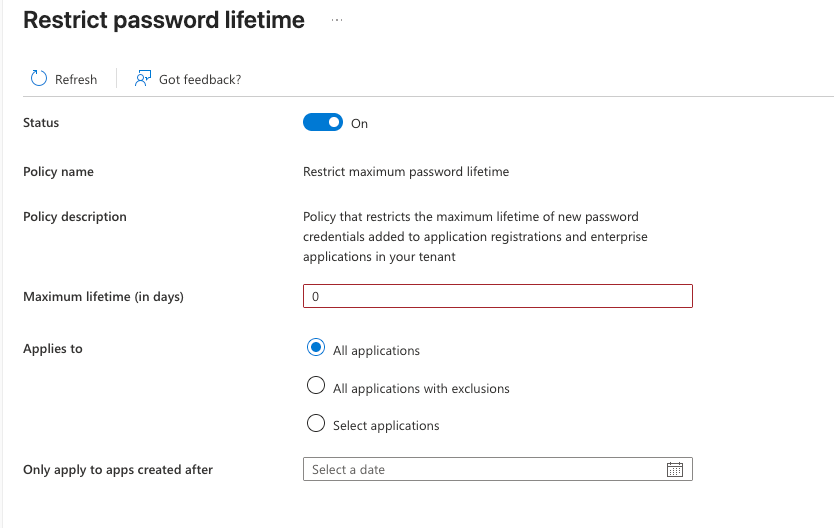
Within the policies we can define, for all apps or a subset of applications the maximum secret lifetime, ideally this should be set for all applications for a maximum of 90 Days.
Microsoft recommends eliminating secrets entirely via managed identities or federation – if you must use secrets, enforce strict secret policies, keep secrets short‑lived, rotate them regularly, store them securely, and continuously monitor their use.
Use certificates where possible
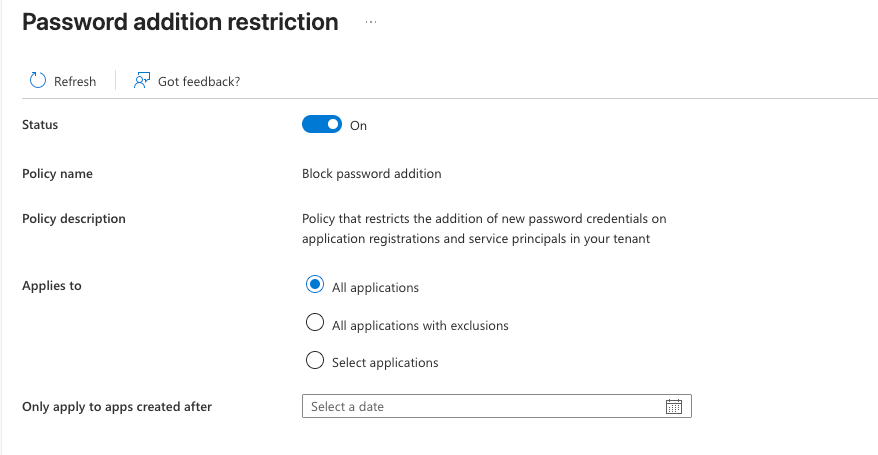
If possible only allow certificates instead of secrets on applications. Certificates are more secure and less likely to be leaked. Using Application Policies, we can block the creation of passwords on all or a subset of applications.
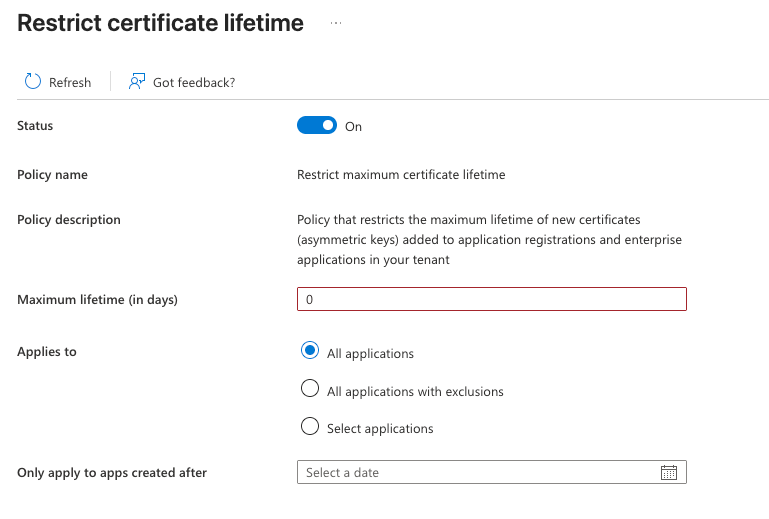
We can also enforce certificate lifetime in the same way as we enforce the maximum lifetime of passwords and secrets.
Use Key Vault
Use Key Vault to store secrets and certificates, assign each with its respective expiry date, and have the application / code / system reference Key Vault for the secret or certificate. You can use an event grid subscription to key vault to notify you when keys are going to expire and need to be renewed. If the systems query the secrets or certificates directly from Key Vault, when you update the secret the system will use the new secret / certificate version without needing to update code.
Automate
When storing secrets and certificates in Key Vault, we can build automation around the credential lifecycle. Using something like a Logic App, Azure Function, or Automation script, we can automatically generate new secrets or certificates in the service principal, and update the associated values within Key Vault—reducing the need for manual credential cycling.
Example workflow:
- Key Vault triggers an Event Grid notification 30 days before secret expiry
- Logic App or Function receives the event
- Script generates a new secret in the service principal via Graph API
- New secret is stored in Key Vault with updated expiry
- Notification sent to the owner confirming rotation
The key benefit: applications querying secrets directly from Key Vault automatically pick up new credential versions without code changes or deployment.
Remove unused / stale identities
Review workload identities regularly. One option is to use Access Reviews, where an owner must explicitly approve the continued use of an application.
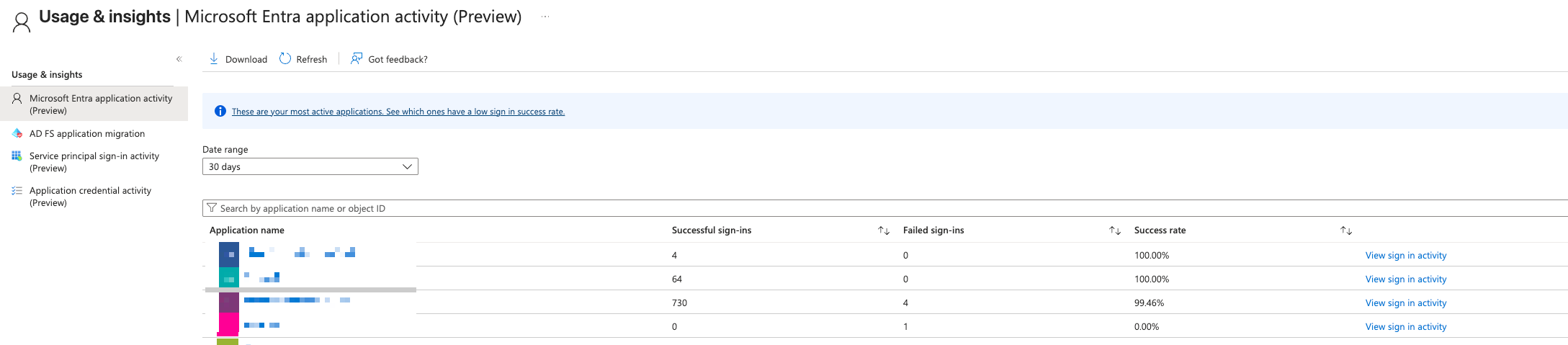
You can also review sign-in logs to determine whether a service principal is still actively used. The Usage and Insights preview reports under Enterprise Applications can be particularly useful here.
Disable unused applications
If you are unsure if an application is still required, you can disable it before going ahead with deletion. Unfortunately at the minute this option is not available directly in portal, but you can do it through a graph API call. Microsoft have a how to guide here. https://learn.microsoft.com/en-us/entra/identity/enterprise-apps/deactivate-app-registration
Before disabling or deleting an application have a defined rollback plan.
Disable first, delete later – as mentioned above, disable the application for 30-60 days before you delete it. This gives you time to adjust and roll back if you identify any dependencies that weren’t immediately obvious. If you accidentally delete an application you have 30 days to restore it. Make the effort to review and check areas such as sign in logs for the last 90 days, application logs and validate with any owners / users that may be listed or assigned to the application.
Apply Least Privileged Access
The audit script above will export a list of all API permissions delegated to applications and if they are application assigned or delegated permissions. Always grant only the access required for the principal, keep principals separated – so don’t over grant permissions to a single principal, instead they should be workload focused.
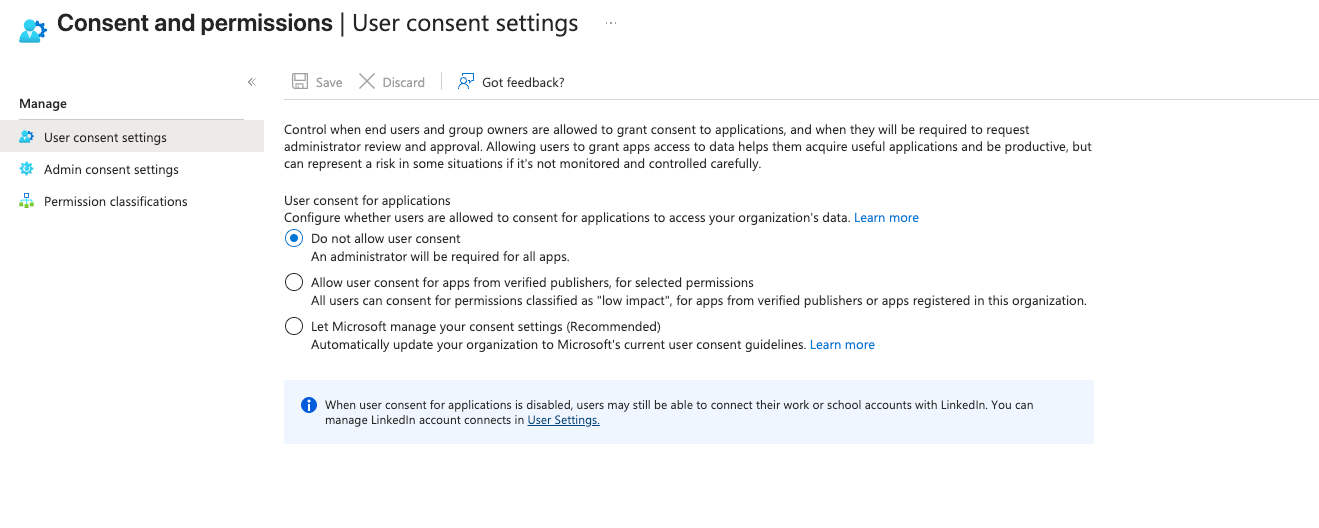
We have some controls available to us for workflows and approvals under the Consent and Permissions area within Enterprise Applications that can help us make more informed decisions when approving access controls.
On the User consent settings, you can control if you want to allow users to consent or enforce only administrators from approving permissions. If you allow user consent you can allow it for low impact applications, or let Microsoft manage the content policy.
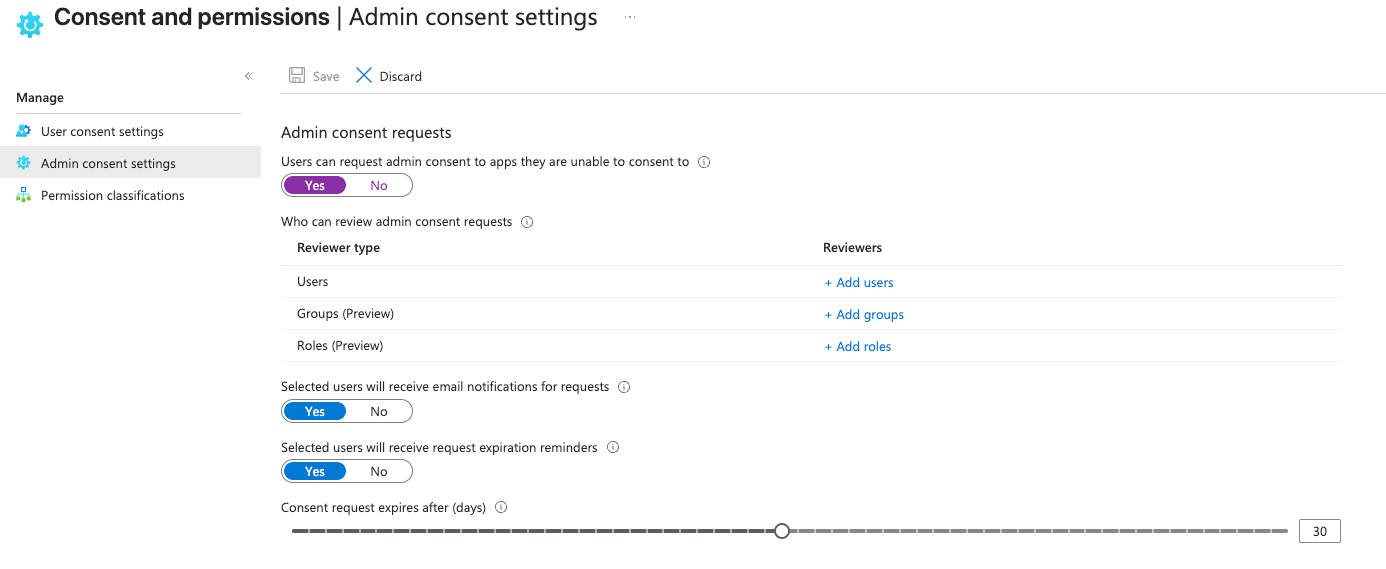
Where users try to access apps they are unable to consent to themselves, you can allow them to submit a request for an admin to approve it. This is done within the Admin Consent Settings, where you can configure notifications, and which users, groups or role holders can approve consent requests.
Finally, on permission classifications, we can define what we class as Low, Medium and High Risk permissions which you can then use within the consent policies.
Monitor and Alert
Implementing best practices is only valuable if you know when things drift or something suspicious happens.
Key Metrics to Monitor
- Failed sign-ins – Unusual failure patterns might indicate credential compromise attempts or misconfiguration
- Sign-ins from unexpected locations – Service principals should authenticate from known IP ranges
- Privilege escalation – Alert when new permissions are granted to service principals
- Credential additions – Notify when new secrets or certificates are added
- Unused credentials – Flag service principals that haven’t signed in for 90+ days
Use the risky workload identities report inside Entra ID Protection blade. In addition, query the Entra audit logs for actions that happen against service principals, for example this query will show you who added credentials to service principals.
AuditLogs
| where TimeGenerated > ago(7d)
| where OperationName == "Add service principal credentials"
| project TimeGenerated, InitiatedBy=tostring(InitiatedBy.user.userPrincipalName),
  TargetResources, ActivityDisplayName
Or to list applications that have recently had updates to their secrets / certificates.
AuditLogs
| where TimeGenerated > ago(90d)
| where Category == "ApplicationManagement"
| extend Initiator = tostring(InitiatedBy.user.userPrincipalName)
| where OperationName == "Update application – Certificates and secrets management "
| extend AppName = tostring(TargetResources[0].displayName)
| extend AppId = tostring(TargetResources[0].id)
| project TimeGenerated, Initiator, AppName, AppId, OperationName, Result
| order by TimeGenerated desc
Incorporate these audit log queries with Azure Alert Notifications to respond quickly when things drift.
Secure Workload Identities
Building a defence in depth approach to workload identities is key to minimise security risks. Following the above guidelines will get us in a great place, adding a final layer through conditional access policies helps tie everything together.
To apply Conditional Access policies to workload identities, you must license each targeted service principal with Microsoft Entra Workload ID Premium.
While service principals don’t support MFA, Conditional Access still allows you to meaningfully reduce risk — for example by restricting where identities can authenticate from (named locations, IP ranges) or enforcing sign-in risk controls.
Summary
Securing workload identities requires a defence-in-depth approach.
Start by understanding what exists, reduce risk through better defaults and lifecycle management, and then apply enforcement through Conditional Access. When done well, workload identities become predictable, auditable, and far less dangerous, instead of being invisible high-privilege accounts running quietly in the background.